
1. Admin Partners can add other partners in PWD
1. Admin users can see a new tab in PWD, "Users".
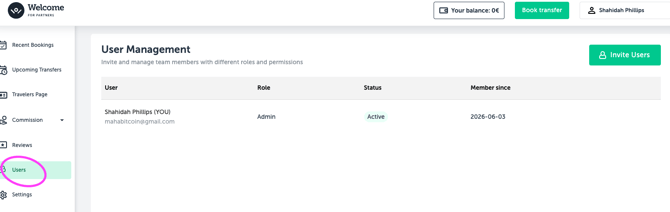
In this tab, you can see all users that have been added to your partnership, excluding Welcome Pickups employees.
2. You can invite new users by clicking on the "Invite Users" button.
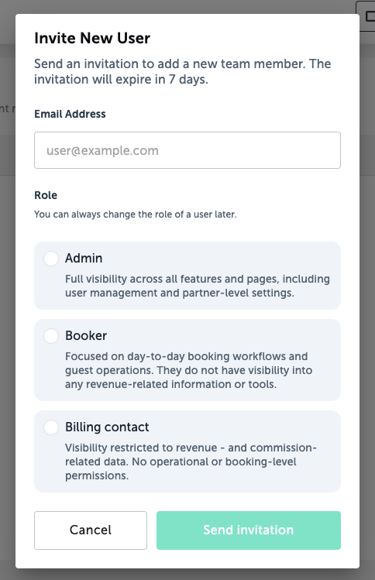
3. Add the email address of the user you would like to invite and select the role you would like them to have.
4. After that, click Send Invitation.
5. The invited user will then receive the following email:
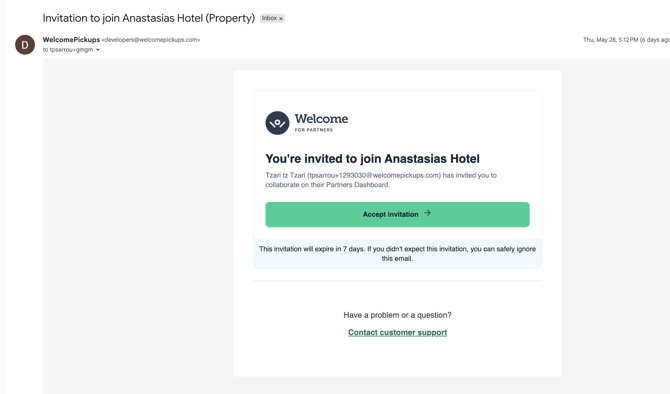
Note: Invitations expire after 7 days.
2. Send a reminder
You can send a reminder before the invitation expires.

3. Edit or delete users
You can edit or delete existing users by clicking on the three dots next to their profile.
4. Existing WP Partners
If the invited user is already a Welcome Pickups partner, but is not yet part of your partnership, this partnership will be added to their existing account once they accept the invitation.
5. New WP Partners
If the invited user does not already have a Welcome Pickups account, they will be added to the partnership after accepting the invitation.
They will then be able to log in to PWD and will receive an additional email prompting them to create their password.
Here you can check a helpful video with all the instructions: