
1.Ask the partner to Login to Expedia Partner Central.
2. Click on Guest Relations → Message Centre to the menu/column on the left.
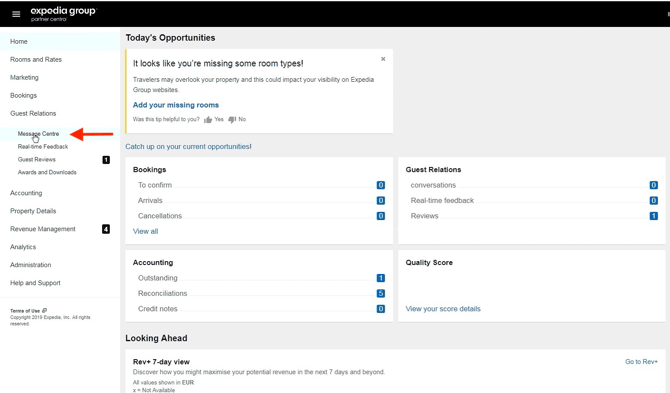
3. Next, Click on Templates and Schedules
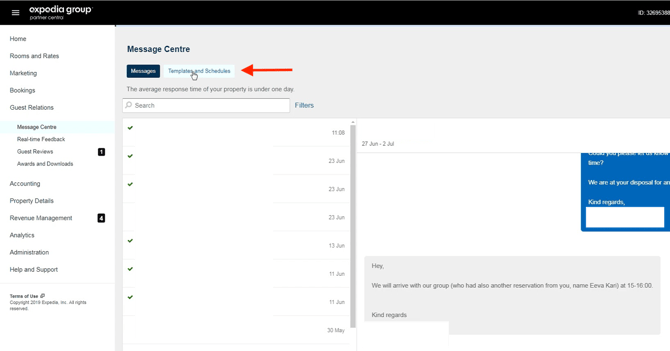

4. The following section will be revealed then, asking you to create a Template:
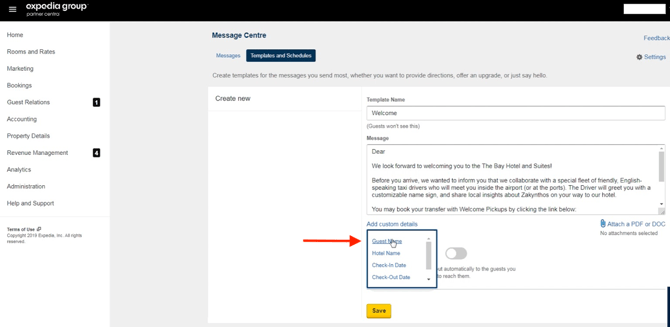

5. Since you are accessing this function , copy-paste from your device to the Hotelier's won't be allowed. To overcome this obstacle, it would be truly helpful to have the below context prepared in advance and sent to your partner via email, so you copy paste it directly from his device:
|
Instant |
Reminder |
Pre-Checkout |
|---|---|---|
|
Dear ____, Thank you for choosing the Kinissi Palace Hotel! We would like you to have the best time possible in Thessaloniki, and since we know how important the first few hours in a new place can be, let us offer you to book a transfer with our transportation partner – Welcome Pickups, if you simply click the link below: https://new.transfersforhotels.com/h/thessaloniki/kinissi-palace?r=exp_ins We are looking forward to welcoming you to the Kinissi Palace Hotel! Best regards, |
Dear ____, We are looking forward to welcoming you the next days at the Kinissi Palace Hotel! A while back we sent you an email to help you get the best possible welcome in Thessaloniki! https://new.transfersforhotels.com/h/athens/kinissi-palace?r=exp_rem Always at your disposal. Best regards, |
Hi ____,
We hope you’re enjoying your stay at Kinissi Palace Hotel!
We would like to assist you with your drop-off transfer to the Airport or Port, if you simply follow the link below!
https://new.transfersforhotels.com/h/athens/kinissi-palace?dropoff=1&r=exp_out
You can book your transfer in just 60 seconds and our driver will be waiting right outside our Hotel’s entrance and will ensure that you reach your next destination stress-free.
We hope to welcome you again at Kinissi Palace Hotel soon!
All the Best, The Kinissi Palace Hotel Team |
6. To tailor the above messages and address them personally to the recipient, you will need to add a custom field after "Dear" by clicking the Add Custom Details and choosing Guest Name :

7. Similarly to booking.com since we don't import the details of reservations, to have Analytics running for these specific properties that Schedulers get Activated, we will need to customize the ending of the URL as below:
8. Setting up Timetable for the Templates created:
|
For Instant |
For Reminder |
For Pre-checkout |
|---|---|---|
|
1 day after Booking (*this is the shortest time available to send a message through Expedia) |
Before guest check-in 7 days before Check-In |
1 day before Check-out |
 |
 |
|
9. Saving all Templates and the matching Timetable settings will have the whole process finished for the Hotelier.
