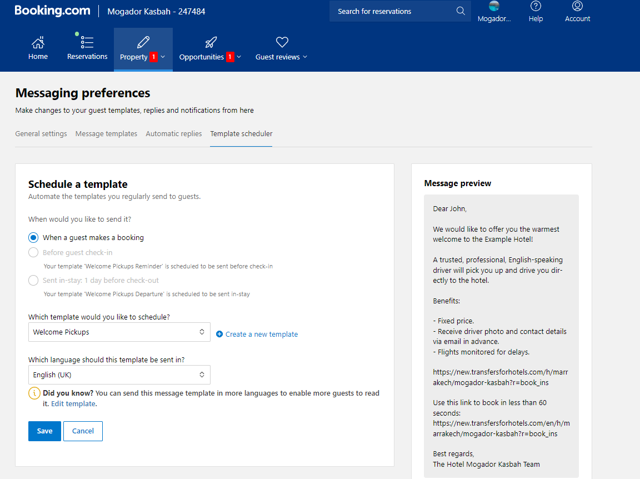
Steps to be followed:
-
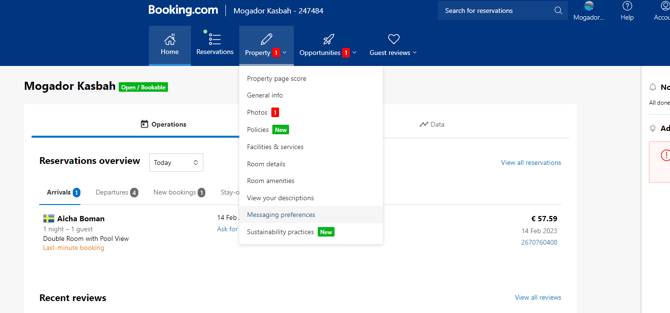
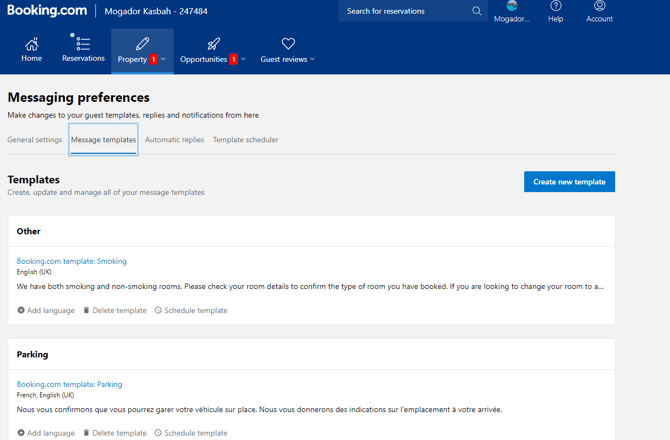
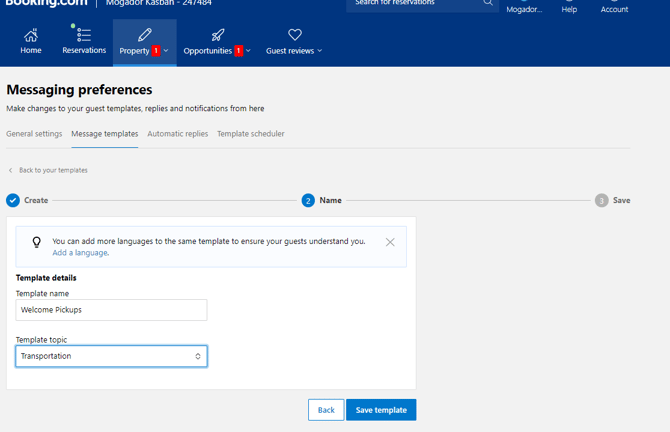
Log in the Subaccount and access Messaging Preferences to get transferred on the below page where Create New Template button will appear.
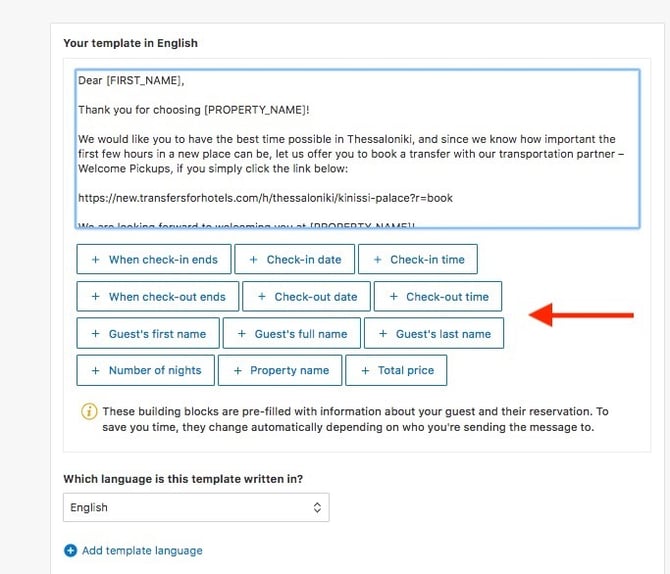
2. Hit the button and the first step will appear requesting you to insert the text wanted: 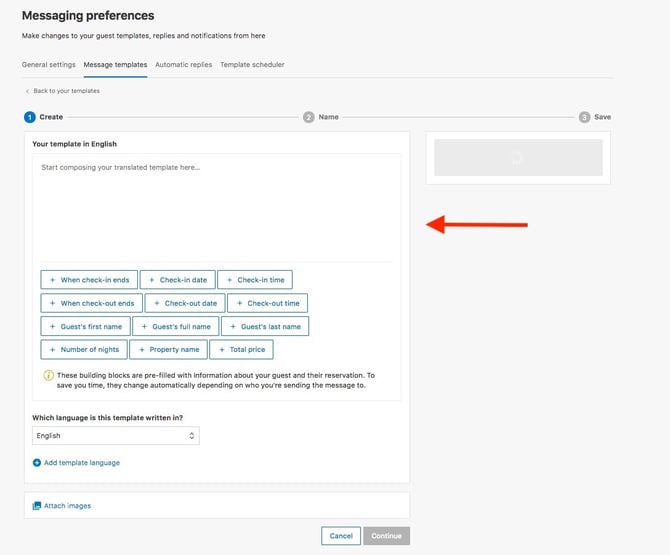
3. To match the overall model of Welcome's campaign process, we will create three different Scheduler templates one for Instant(gets sent instantly after a booking), one for Reminder (7 days prior to arrival) and one for Pre-checkout (1 day prior to departure). The text to be inserted will be as following:
|
Instant |
Reminder |
Pre-checkout |
|---|---|---|
|
Dear [FIRST_NAME], Thank you for choosing [PROPERTY_NAME]! We would like you to have the best time possible in Thessaloniki, and since we know how important the first few hours in a new place can be, let us offer you to book a transfer with our transportation partner – Welcome Pickups, if you simply click the link below: https://new.transfersforhotels.com/h/thessaloniki/kinissi-palace?r=book_ins We are looking forward to welcoming you at [PROPERTY_NAME]! Best regards, |
Dear [FIRST_NAME], We are looking forward to welcoming you the next days at the [PROPERTY_NAME]! A while back we sent you an email to help you get the best possible welcome in Thessaloniki! https://new.transfersforhotels.com/h/athens/kinissi-palace?r=book_rem Always at your disposal. Best regards, |
Hi [FIRST_NAME],
We hope you’re enjoying your stay at [PROPERTY_NAME]!
We would like to assist you with your drop-off transfer to the Airport or Port, if you simply follow the link below!
https://new.transfersforhotels.com/h/athens/kinissi-palace?dropoff=1&r=book_out
You can book your transfer in just 60 seconds and our driver will be waiting right outside our Hotel’s entrance and will ensure that you reach your next destination stress-free.
We hope to welcome you again at [Hotel_name] soon!
All the Best, The [PROPERTY_NAME] Team |
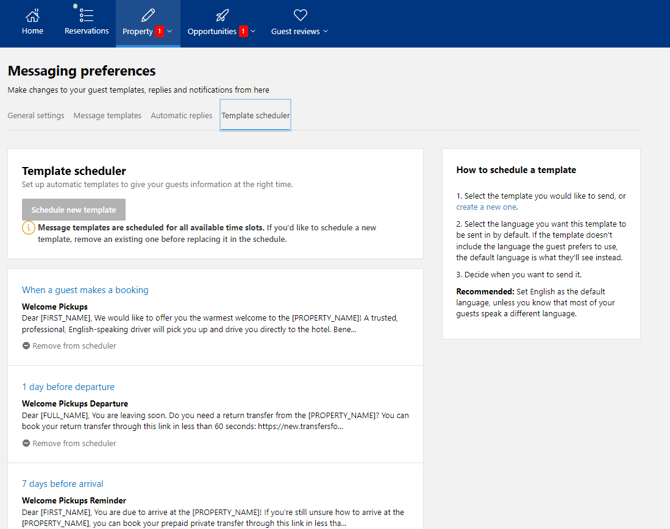
4. After creating the two templates all you need is to set up their trigger :
|
For Instant |
For Reminder |
For Pre-checkout |
|---|---|---|
|
When a guest makes a booking
|
Before guest check-in 7 days before arrival
|
1 day before check-out
|
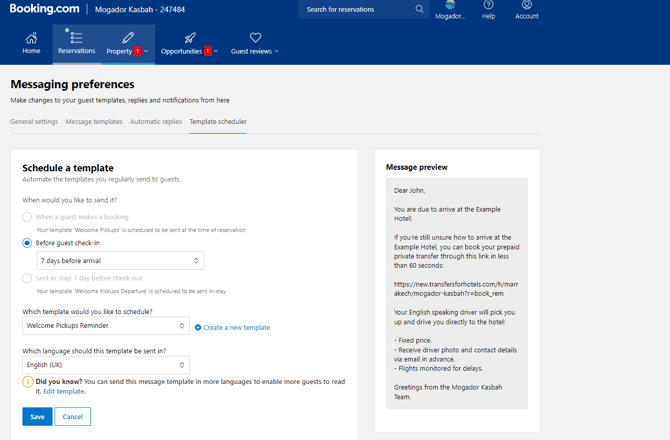
5. To verify that both templates are Active and Running the Template Scheduler will appear as below, restricting you from adding to schedule of the same trigger a second template.