
1. How to Log In Using Email OTP
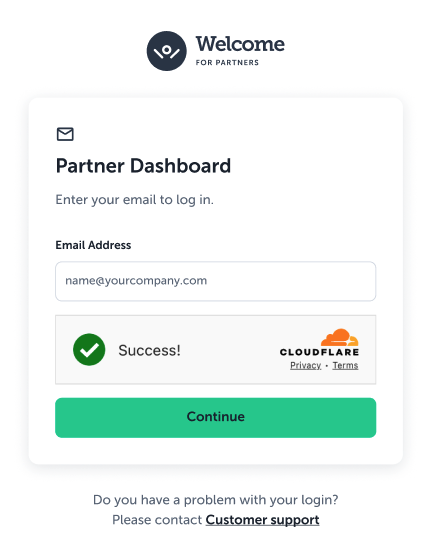
Step 1: Enter Your Email Address
- Navigate to the Partner Dashboard login page.
- Type in the email address associated with your partner account.
- Complete the security verification check (Cloudflare) and click Continue.
Step 2: Check Your Email for the 6-Digit OTP
- Open your email inbox and locate the verification email from the Welcome Pickups team.
- Copy or note down the 6-digit verification code (valid for 10 minutes).
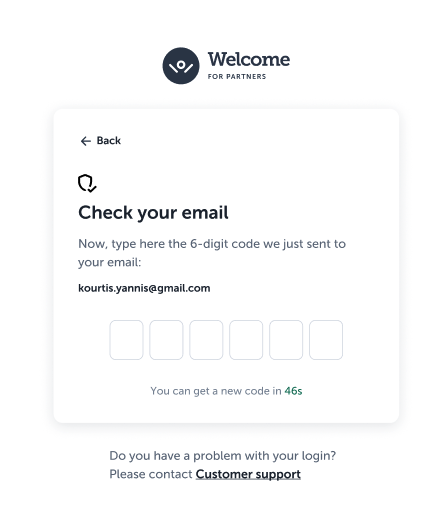
Step 3: Enter the OTP Code
- Return to your browser or mobile app.
- Enter the 6-digit code in the designated input fields.
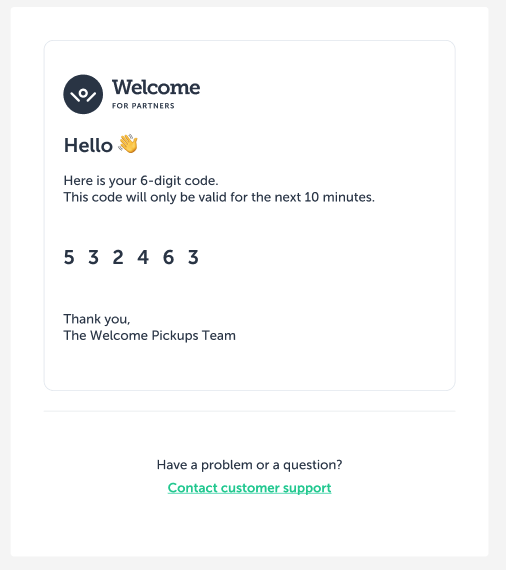
💡 Note on OTP Delivery: If you do not receive the email immediately, check your Spam/Junk folder or click "You can get a new code" after the brief delay timer expires (46 seconds).
2. Setting Up & Using Quick Login with PINAfter completing your initial OTP verification, you can opt to set up a 4-digit PIN and trust your device for up to 30 days.
Logging in as a Returning User:
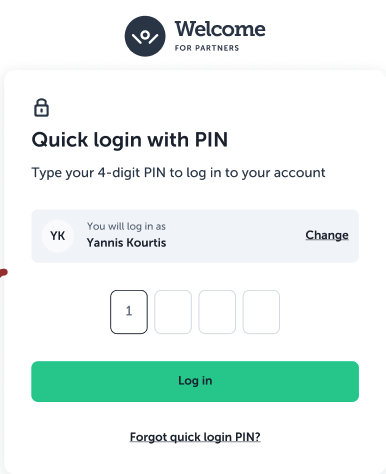
- If your device is recognized and a PIN has been set up, you will be directed straight to the Quick login with PIN screen.
- Enter your 4-digit PIN and click Log in.
3. Shared & Public Devices (e.g., Hotel Front Desks)
If multiple team members access the Partner Dashboard from a shared computer or tablet (such as hotel reception desks across different shifts):
- Do not trust the device if prompted, or ensure you log out at the end of your shift.
- PIN usage on shared devices: PIN setup may be restricted or disabled on shared/public devices to maintain security. Expect to perform email OTP verification more frequently on public hardware.
- Security Alerts: Whenever your account is accessed from a new or unrecognized device, an email alert is automatically dispatched containing device/browser details and a direct link to "Disconnect all devices."
Under User Preferences (PWD), traditional password modification settings have been replaced with passwordless security controls:
- Active Sessions & Device List: View all active browsers, operating systems, and last activity timestamps associated with your account.
- Disconnect All Devices: Instantly terminate all active sessions if you suspect unauthorized access or need to clear shared logins.
- PIN Management: Easily set up, update, or change your 4-digit PIN at any time.